
Patient Guide
Welcome to the NammaDoctor Patient Guide. This document explains how to find care, book appointments, and use our unique live queue system.
For first-time users, we recommend starting with our Getting Started guide to create your account.
Finding Doctors and Hospitals
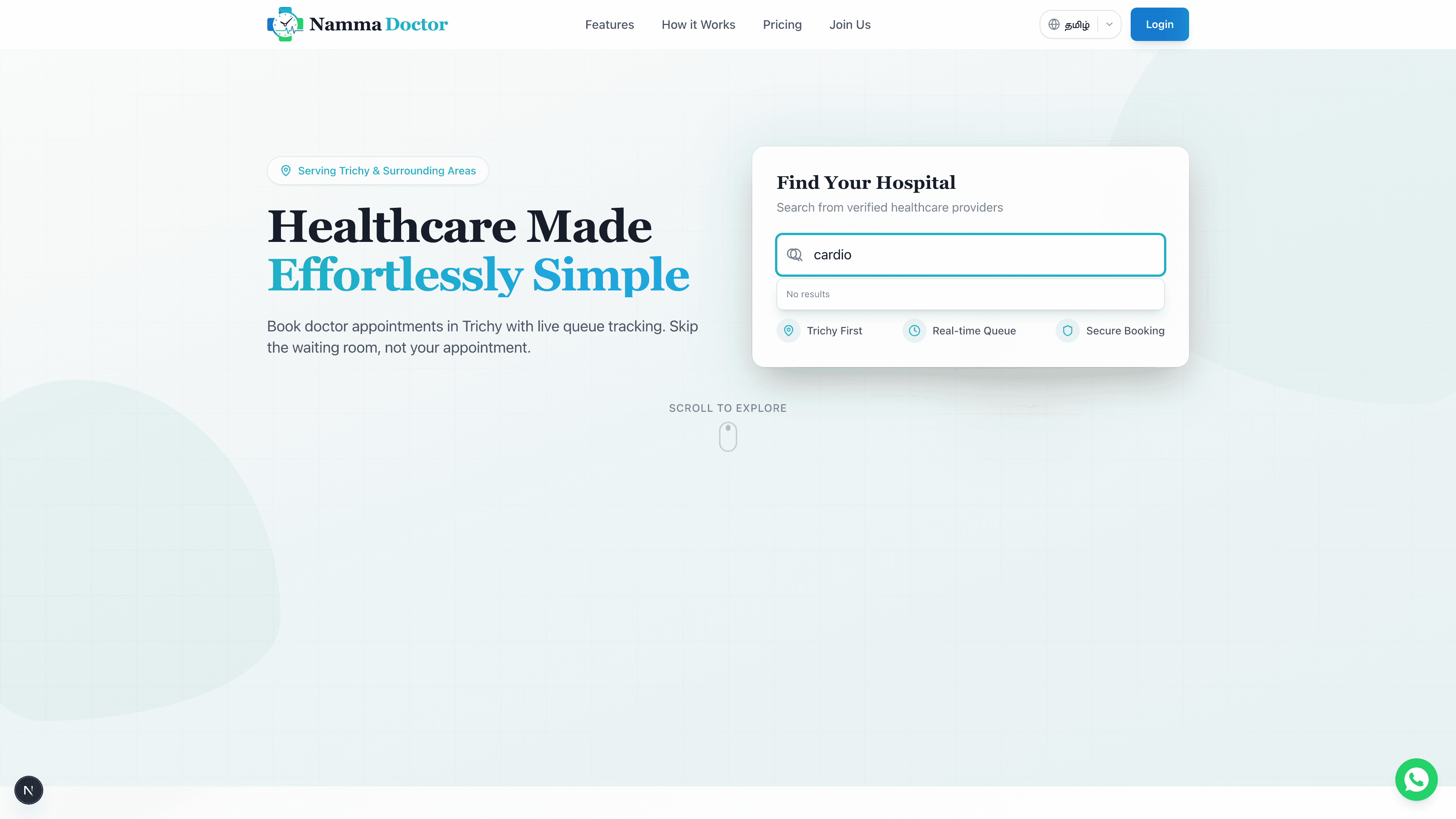
NammaDoctor makes it easy to find the right care provider near you.
- Search: On the homepage, use the search bar to enter a Specialty (e.g., Cardiologist, Dentist) or a Hospital Name.
- Filter: You can filter results by location, availability, and consultation fees.
- View Profile: Click on a doctor or hospital card to view detailed information, including qualifications, services, and patient reviews.
Booking an Appointment
Once you have found a doctor, booking a slot is simple.
- Select a Slot: On the doctor's profile, you will see a list of available time slots. Click on a time that works for you.
- Confirm Details: Review the appointment details. You may be asked to provide a reason for the visit.
- Payment: If a consultation fee applies, proceed to payment. We support UPI and other standard payment methods.
- Confirmation: You will receive a booking confirmation via SMS and Email with your Token Number.
Managing Your Appointments
Keep track of all your bookings - past, present, and upcoming - all in one place.
Your Dashboard
- Log in to your account.
- Click on your profile picture and select "My Appointments".
Here you will see:
- Today's Appointments: Active bookings for the current day.
- Upcoming: Future scheduled visits.
- History: Past completed or cancelled appointments.
Understanding Appointment Statuses
- Payment Pending 🟡: You have 10 minutes to complete payment.
- Confirmed 🟢: Payment done, booking confirmed.
- Checked In 🔵: You have arrived at the clinic.
- Waiting 🟣: The doctor has called you.
- In Progress 🟠: Consultation is ongoing.
- Completed ✅: Consultation finished.
- Cancelled ❌: Appointment cancelled.
- Missed ⚠️: You did not show up.
Using the Live Queue
NammaDoctor features a Live Queue system that saves you from waiting for hours at the clinic.
How to Check Your Queue Position
- Go to My Appointments.
- Click on "View Queue" for today's appointment.
- The queue screen will open, showing your current position.
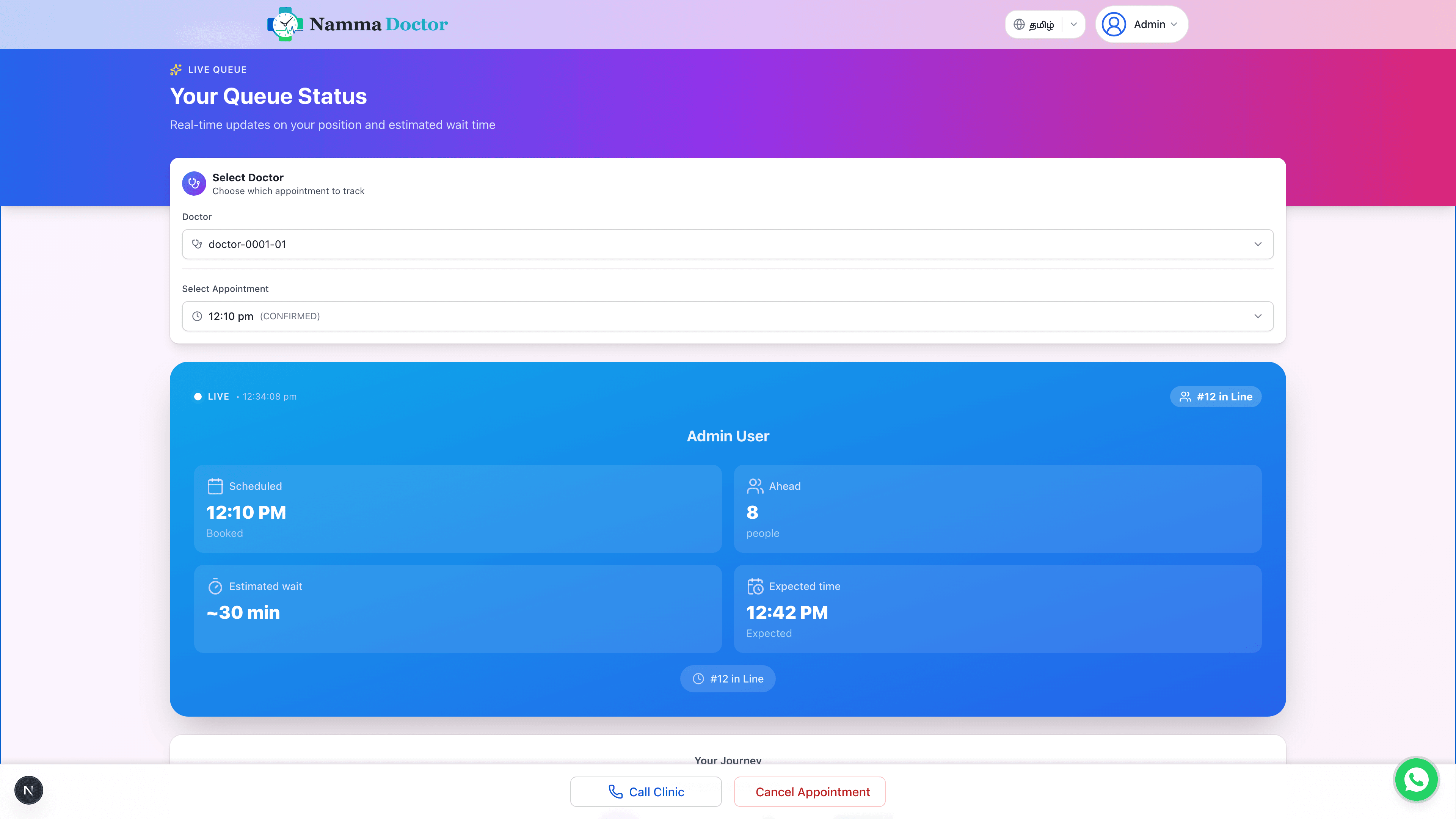
Understanding the Queue Screen
- Your Position: The big number shows your place in line. Position #1 means you are next!
- Estimated Wait: A real-time estimate of when you will be seen.
- Queue Info: Total patients waiting and how many have been seen.
Automatic Updates
The screen updates automatically every 30 seconds. You don't need to refresh manually.
When You're Next
As soon as you reach Position #1, a "You're Next!" banner appears. This is your signal to head to the consultation room.
Tip: You don't need to reach the clinic hours in advance. Check the live status and arrive just before your turn!